How to add an expense and split it
Every shared cost is an expense: who paid, how much, and how it's split. Add one and Cost Share updates everyone's balance instantly.
- 1
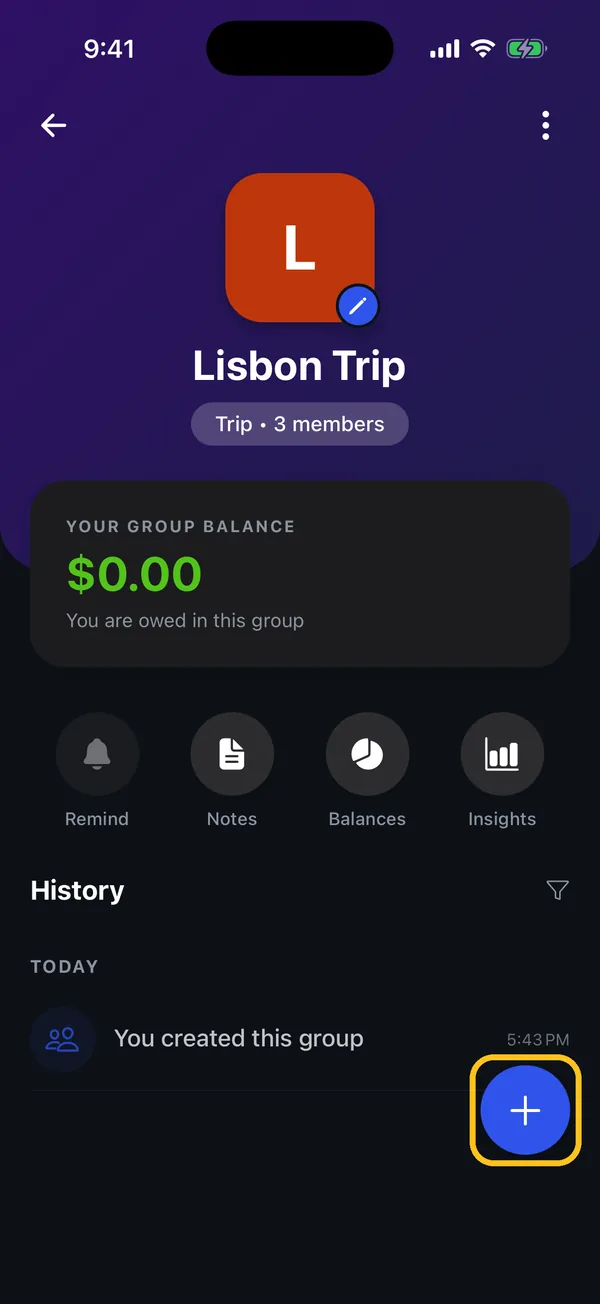
Open the group and tap +
Open the group the expense belongs to and tap the blue + in the bottom-right corner.
- 2
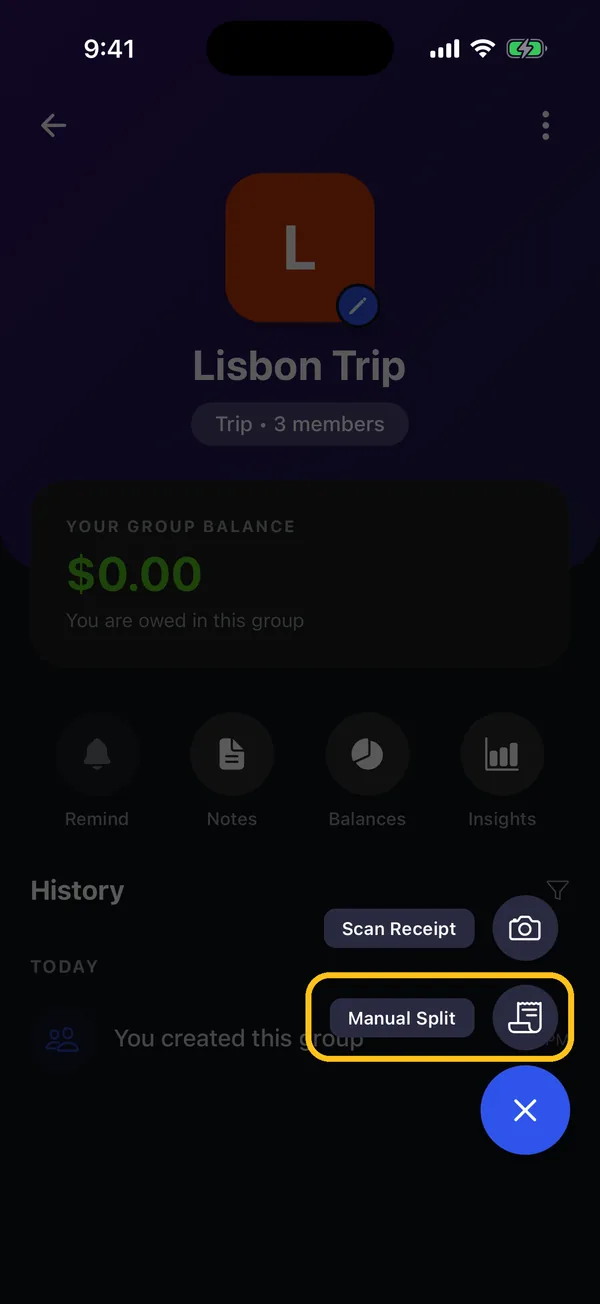
Choose Manual Split
Pick Manual Split to type the expense in yourself. (Scan Receipt reads a receipt for you; see the receipt scanning guide.)
- 3
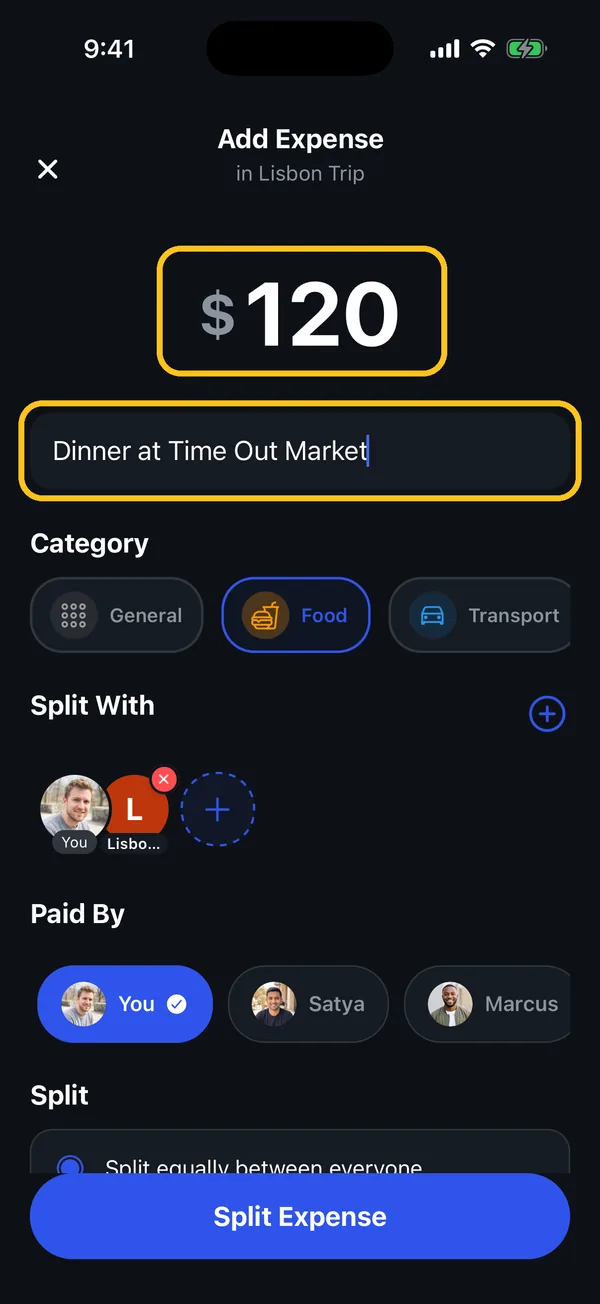
Enter the amount and what it's for
Type the amount, then a short description like “Dinner” or “Taxi”. Cost Share suggests a category from the description; tap another one to change it.
- 4
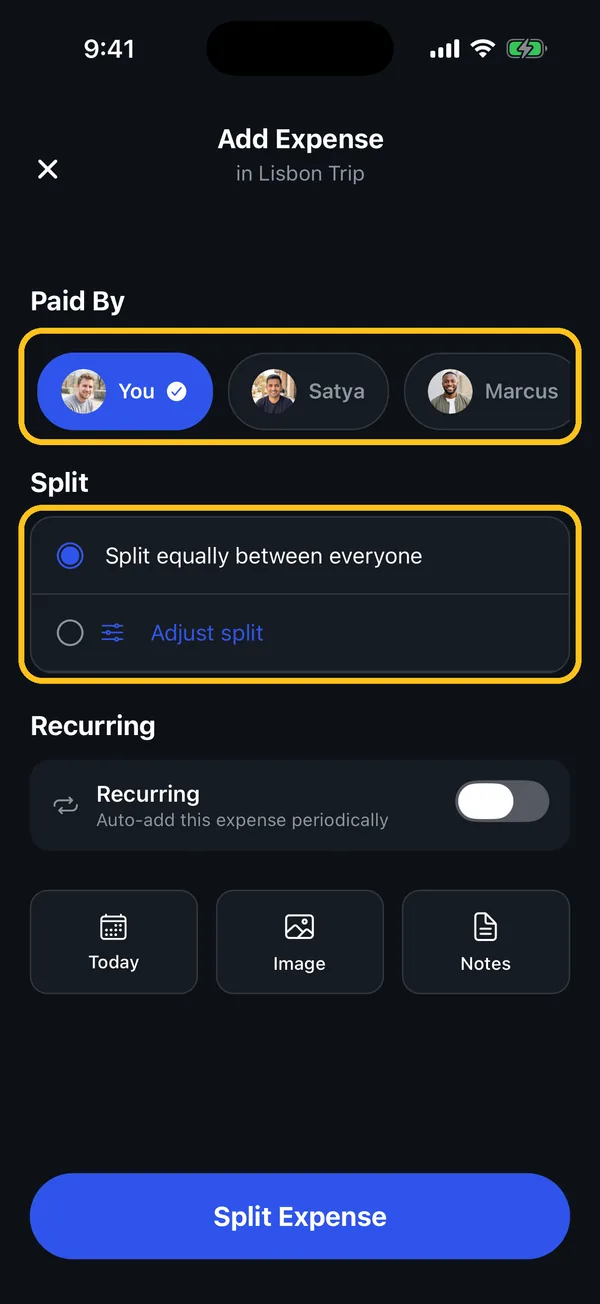
Pick who paid and how to split
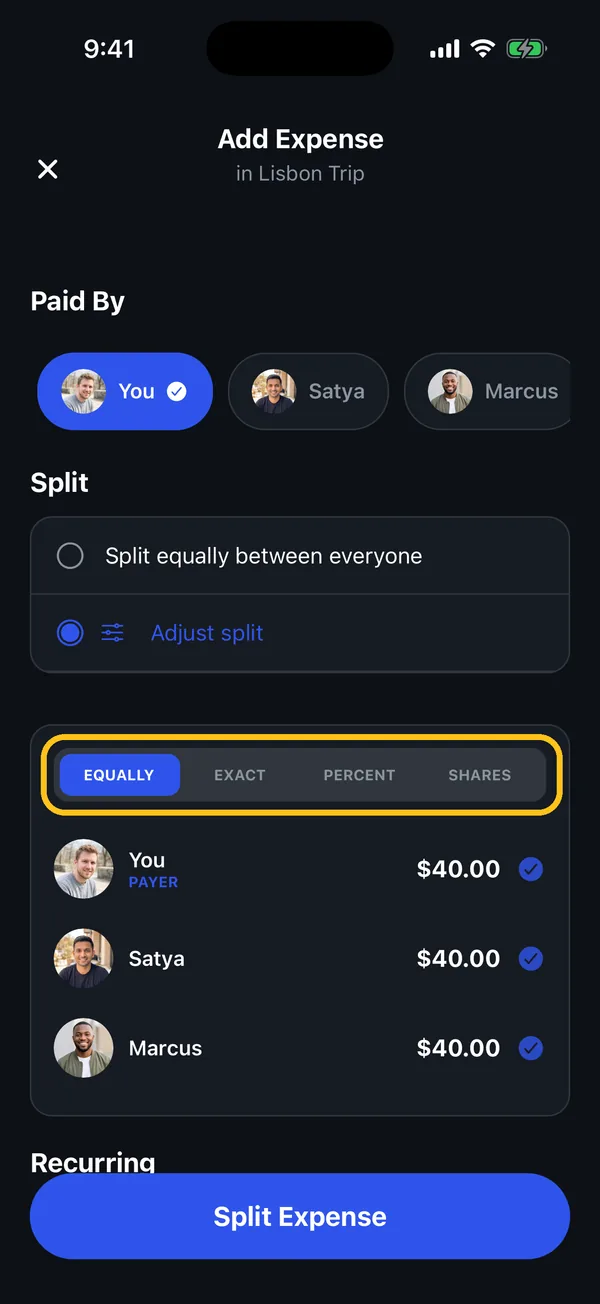
Under Paid By, choose who paid. By default the expense is split equally between everyone in the group.
- 5
Need a different split? Tap Adjust split
Choose Equally, Exact, Percent or Shares, and untick anyone who shouldn't share this expense. Each person's amount updates as you go.
- 6
Tap Split Expense
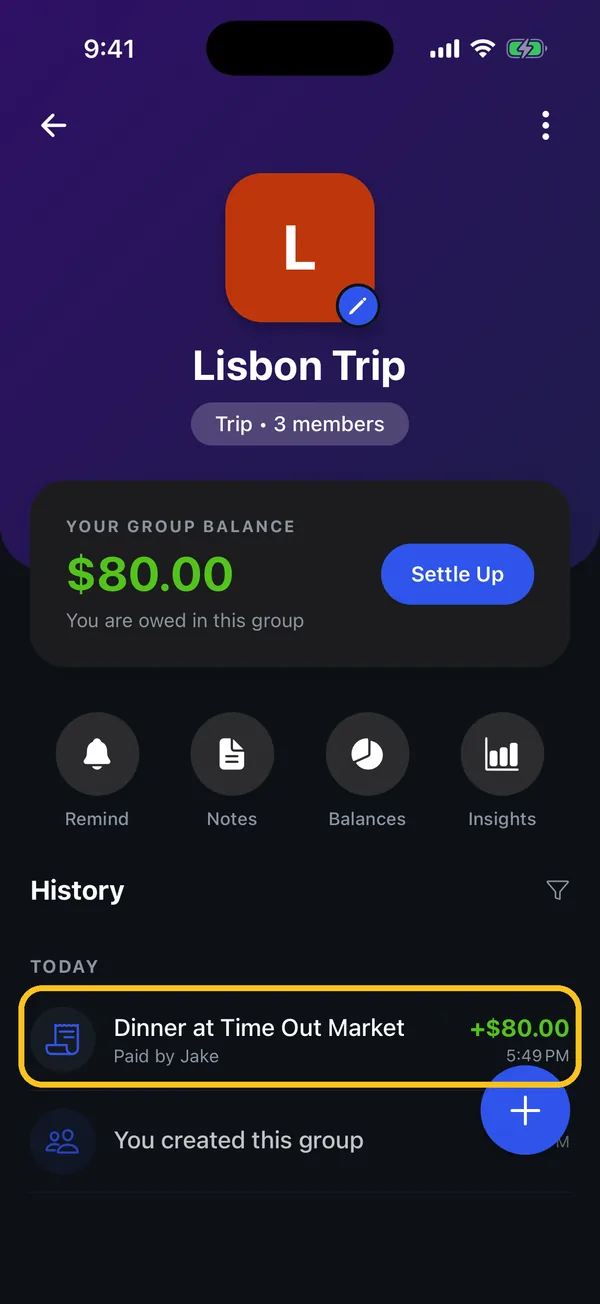
The expense appears in the group's history and everyone's balance updates straight away, in their own app too.
Splitting with friends outside a group?
Tap the + in the middle of the bottom bar instead. Under Split With, choose a group or add individual friends.
Something not working?
What's the difference between Exact, Percent and Shares?
Exact lets you type each person's amount. Percent splits by percentage, for example 60/40 for rent. Shares splits by parts, for example 2 shares for someone who had twice as much.
Someone else paid. Can I still add it?
Yes. Choose them under Paid By. The balance then shows that you owe them.
Can I change an expense after adding it?
Yes. Open the expense from the group's history and tap Edit Expense.
Can I make it repeat every month?
Yes, with Premium. Turn on Recurring on the Add Expense screen and it's added automatically on schedule, which is ideal for rent and subscriptions.
Still stuck? Contact support — we'll help you personally.