How to add friends
Friends are the people you split expenses with. Once you're connected, you can split bills one-on-one or add each other to groups. There are three ways to connect: search by name, scan a QR code, or share your invite link.
- 1
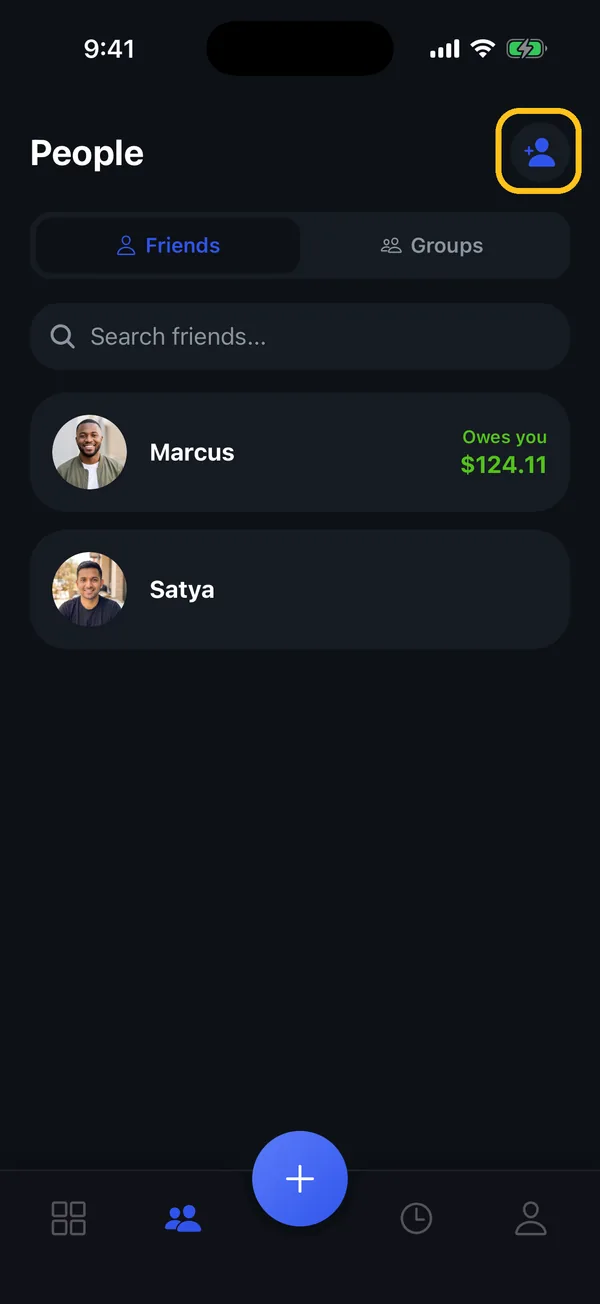
Open People and tap the add-friend button
Tap People in the bottom bar, make sure Friends is selected, then tap the person-plus button in the top-right corner.
- 2
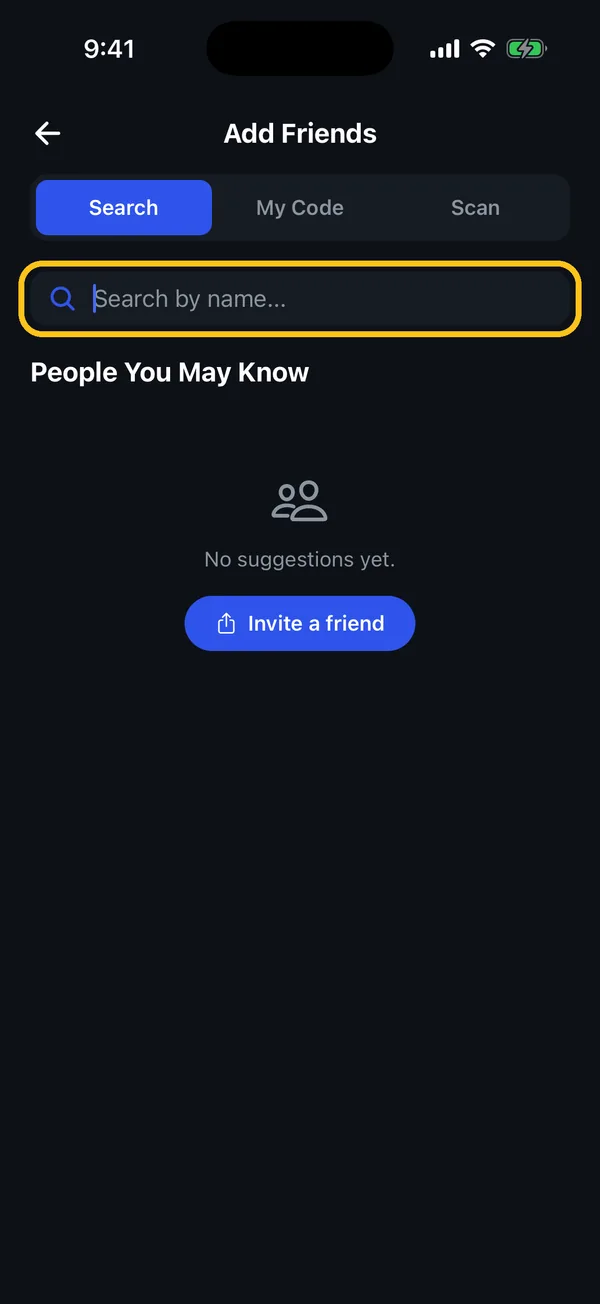
Search for them by name
On the Search tab, type your friend's name and tap Add next to them. They get a friend request and appear in your friends list as soon as they accept it.
- 3
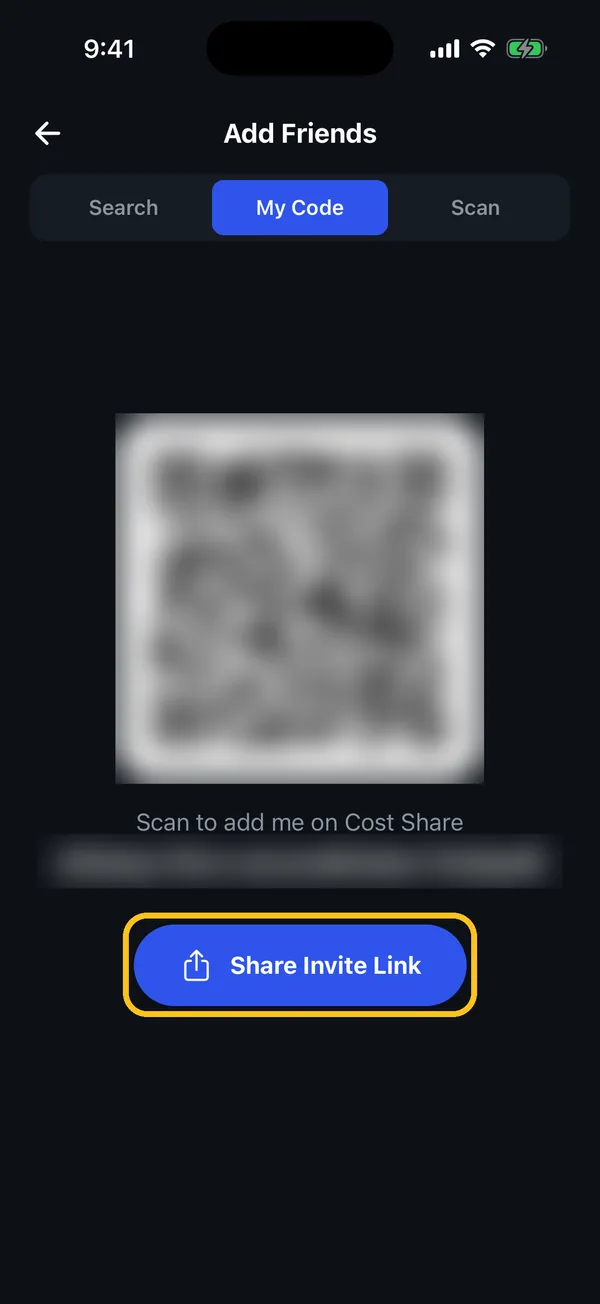
Or share your code or invite link
Together in person? Open My Code and let them scan it from their own Scan tab, which connects you straight away. Not on Cost Share yet? Tap Share Invite Link and send it by message; when they sign up from your link, you're connected automatically.
Got a friend request?
Requests sent to you appear under Friend Requests at the top of People → Friends. Tap Accept to connect.
Something not working?
I can't find my friend when I search
They need a Cost Share account first. Send them your invite link from Add Friends → My Code → Share Invite Link. Once they sign up from it, you'll be connected automatically.
I sent a request but they're not in my list
Requests sent from search wait until your friend accepts them. Ask them to open People → Friends and tap Accept under Friend Requests. Scanning each other's QR code connects you instantly instead.
Does my friend need the app?
Yes. Cost Share is free on iOS and Android, and everyone you split with needs an account to see and settle their balance.
Still stuck? Contact support — we'll help you personally.