How to add people to a group
Add friends to an existing group so everything you spend there is split between the right people. It takes under a minute.
- 1
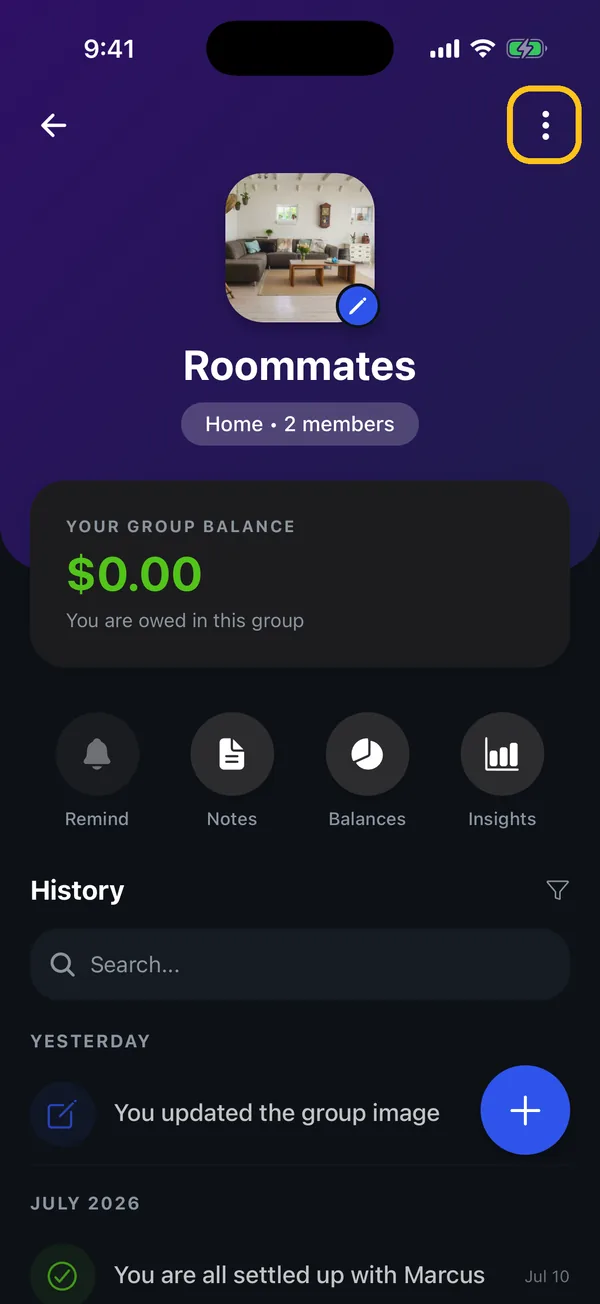
Open the group and tap the ⋮ menu
Go to People → Groups, open the group, then tap the three dots in the top-right corner.
- 2
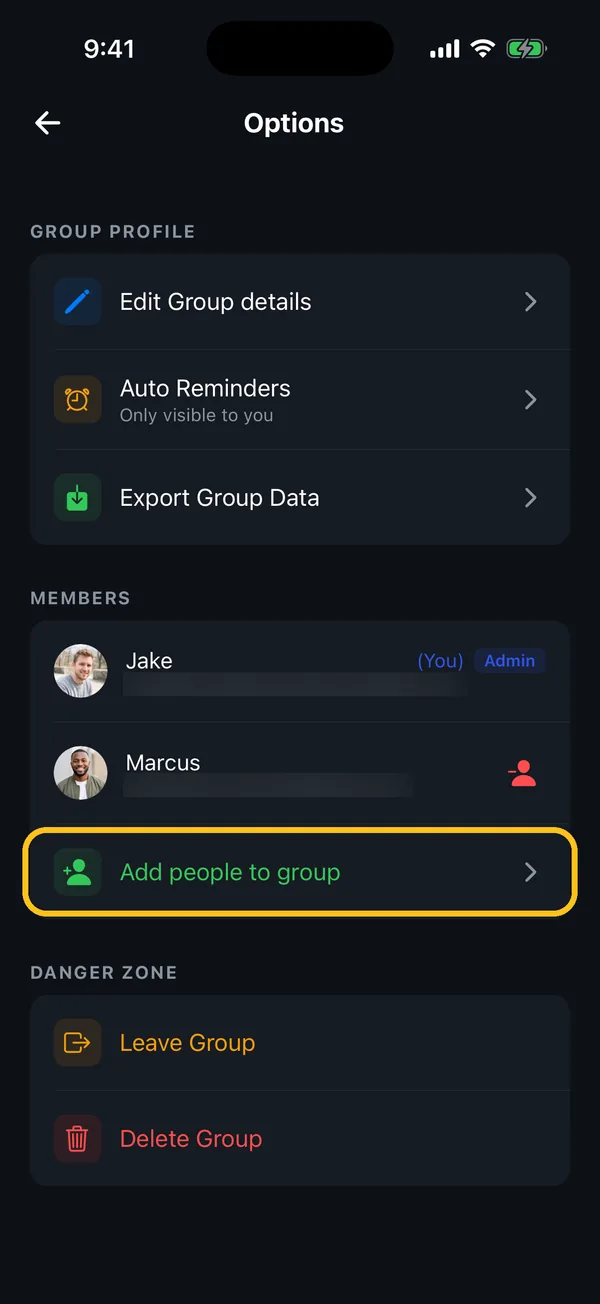
Tap “Add people to group”
You'll find it under Members, below everyone who's already in the group.
- 3
Tap + next to each person
Everyone you're connected with who isn't in the group yet is listed here. Tap + next to the person you want to add.

- 4
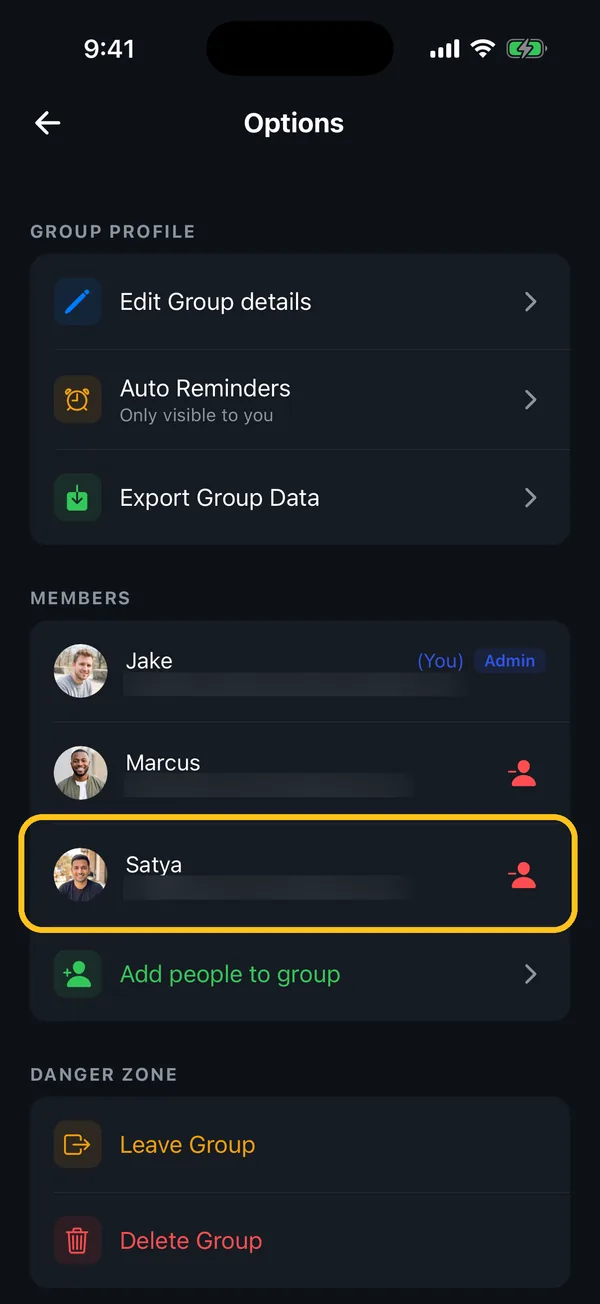
They're in
They're added straight away and now appear under Members. They'll see the group, and every expense in it, in their own app.
Shortcut for a brand-new group
If you're the only one in a group, the group page shows an “Add people to this group” card. Tapping it opens the same list as step 3.
Something not working?
The person I want isn't in the list
Only people you're connected with in Cost Share appear. Add them first from People → Friends → the add-friend button (search by name, scan their code, or share your invite link). Once they've joined, they'll show up in the list.
My expenses aren't showing in the group
Expenses only count towards a group when they're added to it. Open the group and add new expenses with the + button there. To move an existing expense, open it, tap Edit Expense, and choose the group under Split With.
I created the group before my friends joined
That's fine. Create the group whenever you like and add people once they've joined Cost Share, using the steps above.
Still stuck? Contact support — we'll help you personally.